Category: Security

  • Why Families Should Treat QR Codes Like Links, Not Magic Squares

    Why Families Should Treat QR Codes Like Links, Not Magic Squares

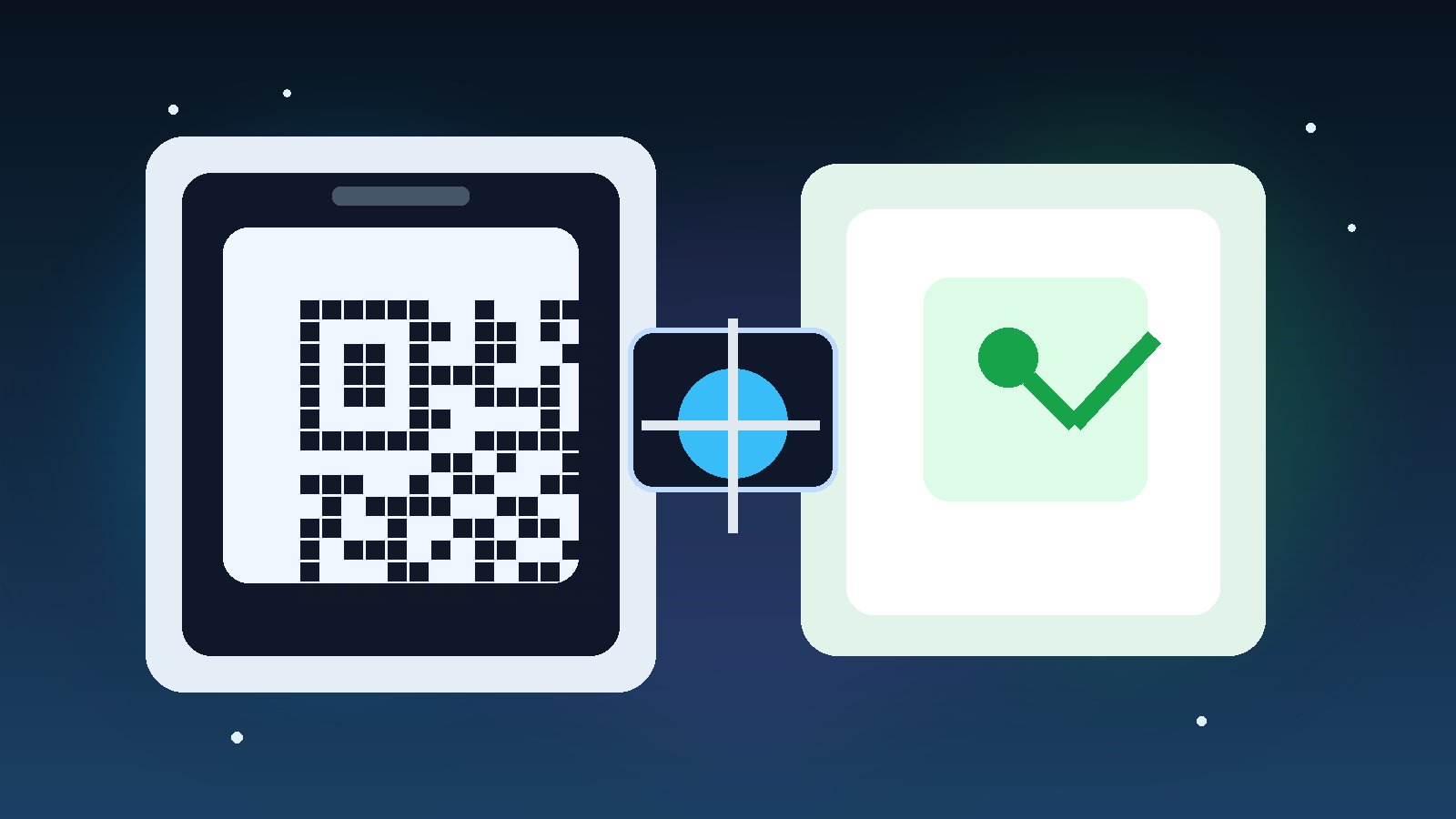
    QR codes have become one of those odd technologies that people trust more as they see them more often. They show up on restaurant tables, school flyers, utility bills, parking signs, package inserts, and random stickers on storefront windows. Because the black-and-white square looks boring and familiar, it often gets treated as safer than a plain web link. That is a mistake. A QR code is usually just a link wearing a disguise.

    For families, that matters because QR codes lower everyone’s guard at once. Adults scan them quickly when they are in a hurry. Teens scan them because they assume the code came from a legitimate poster or event. Kids notice that grown-ups treat scanning as normal and harmless. The safer habit is simple: if you would not blindly click a mystery link in a text message, you should not blindly scan a mystery QR code either.

    A QR Code Does Not Show You Where It Is Really Sending You

    The biggest problem with QR codes is not that they are evil. It is that they hide the destination until after you interact with them. A printed web address can at least be read with your eyes before you decide whether to visit it. A QR code removes that moment of judgment and replaces it with a tap-happy reflex.

    That makes QR codes attractive for scams. A fake sticker can be placed over a real code on a parking meter, public poster, or checkout display. A misleading flyer can push a family member to a payment page, a fake login screen, or a malware-laced download. The square itself does not look suspicious, so the scam gets a head start before anyone asks basic questions.

    Convenience Is Exactly Why Families Need a Rule

    Most family tech mistakes do not happen because someone wanted to be reckless. They happen because something felt ordinary. QR codes are built for speed. Scan, tap, pay, move on. That convenience is helpful, but it is also why a household rule helps. When the tool is designed to skip friction, the user has to add some back intentionally.

    A practical family rule is to pause before scanning any code tied to money, passwords, account recovery, app downloads, or school-related forms. If the code claims urgency, promises a prize, or appears on a sticker that looks newly added or poorly placed, that is a reason to slow down even more. Good habits matter most when the design is trying to make you move fast.

    Phone Cameras Often Give You One Last Chance

    One small mercy is that many phone camera apps now preview the destination before opening it. That preview is worth using. Families should get used to reading the domain name and asking whether it makes sense in context. A school handout that opens a known school domain is one thing. A random code at a fundraiser that jumps to an unfamiliar payment site with a messy web address is another.

    This is especially important for kids and teens, who may understand how to use phones very well without having much instinct for domain spoofing or fake payment pages. Teaching them to check the destination is more useful than teaching them to fear every code. The goal is not paranoia. It is pattern recognition.

    • Look for the destination preview before opening the link.
    • Avoid scanning codes that ask for payment, passwords, or app installs without clear context.
    • Prefer typing a known website yourself when a code seems unnecessary.
    • Be suspicious of stickers, tampered signs, or anything that feels newly pasted over an older surface.

    Those steps are boring, which is exactly why they work. Most digital scams lose power when people stop acting on autopilot.

    Shared Family Spaces Create Shared Risk

    Families also need to remember that one careless scan can affect more than one person. If a parent enters card information on a fake payment page, the household may spend days cleaning up fraud alerts and replacement cards. If a teen signs into a fake school or gaming portal, that stolen password may also unlock other accounts if it was reused. A bad scan is rarely just a bad scan.

    That shared risk is why it is worth discussing QR codes at home in the same category as suspicious texts and weird email links. The technology may look different, but the underlying problem is the same: someone is trying to get trust before they have earned it.

    The Smart Habit Is Mild Skepticism, Not Fear

    QR codes are not going away, and they do have real uses. They can speed up event check-in, connect to a restaurant menu, open a school resource, or simplify device setup. The answer is not banning them from family life. The answer is treating them honestly. They are not magic squares. They are hidden links that deserve the same level of common sense as any other shortcut on the internet.

    If a family can normalize one sentence, it should be this: show me where it goes first. That tiny pause catches a lot of nonsense before it gets a chance to become a real problem.

  • A Family Tech Travel Checklist That Actually Prevents Panic

    A Family Tech Travel Checklist That Actually Prevents Panic

    The best family tech travel plan is not a giant packing list. It is a short set of decisions that reduces the odds of a ruined trip: locked accounts, dead batteries, lost photos, unsafe Wi-Fi, and kids getting stranded without the right contact info. Most travel tech stress happens because families prepare chargers but skip recovery, backups, and expectations.

    If you handle those basics before you leave, the rest of the trip gets easier. You do not need enterprise-grade tooling. You need a few calm, practical habits that still make sense when everyone is tired and halfway through a long drive or stuck in an airport.

    Start with account recovery, not charging cables

    The highest-impact travel prep is making sure the adults in the household can still get into critical accounts if a phone is lost, damaged, or replaced. That means checking password manager access, verifying recovery email addresses, and confirming that at least one backup sign-in path exists for the most important services. Travel is exactly when people discover that a verification code is going to a device that is no longer in their pocket.

    For families, the critical list is usually small: the main email account, the password manager, the mobile carrier app, cloud photo storage, maps, and any airline or hotel apps tied to reservations. If those are recoverable, most other annoyances stay manageable.

    Give the family one clean backup path

    Every household should have one backup route that still works if a primary phone disappears. That could mean a secondary adult device already signed into the password manager, a recovery code stored securely at home, or a travel document folder with the support numbers and account names you would need in a hurry. The goal is not complexity. The goal is avoiding a total lockout when something breaks at the worst possible time.

    This is especially important if children travel with tablets or phones connected to shared family accounts. Adults should know which accounts are linked, which parental controls matter, and which device can approve a sign-in request if the primary phone is unavailable.

    Prepare devices for bad networks, not ideal ones

    Travel plans often assume strong service, fast Wi-Fi, and plenty of time to troubleshoot. Real trips are messier. Before leaving, download maps for the areas you will visit, update key apps on home Wi-Fi, and save tickets or reservation details for offline access when possible. If you rely on streaming for kids in the back seat, preload enough content to survive a weak connection.

    It also helps to decide in advance what you will not do on public networks. Sensitive account changes, large photo library reorganization, and device resets can wait until you are back on a trusted connection. A little restraint prevents a lot of avoidable chaos.

    Make charging simple enough for tired people

    Families do better with fewer charging standards, not more gadgets. A compact power bank, two dependable cables, and one good multi-port charger usually beat a bag full of mystery accessories. Labeling is optional, but consistency matters. If every device depends on a different cable and nobody knows which one is reliable, charging turns into friction instead of routine.

    Parents should also think about the end of the day, not just the road itself. Decide where phones will charge overnight, which device needs to stay ready for navigation or emergency calls, and whether a child’s entertainment device has a battery plan that does not drain the family’s only backup power source.

    Tell kids what to do when tech stops working

    A lot of travel stress comes from unspoken assumptions. Children may know how to use a device, but that does not mean they know what to do if it dies, loses service, or gets separated from the adult who set it up. Before leaving, give simple instructions: who to call, what information to memorize, and what to do if they cannot reach anyone right away.

    That conversation matters more than any app choice. Family tech is strongest when the humans using it understand the fallback plan.

    Use a short pre-trip checklist that someone will actually follow

    The best checklist is boring and repeatable. It should fit into a minute or two, not become a project of its own.

    • Confirm one backup login path for essential accounts
    • Download maps, tickets, and any must-have media
    • Charge the power bank and test the cables you are bringing
    • Review the kid plan for lost service or a dead device
    • Make sure photos will back up again once you are on trusted Wi-Fi

    That is enough to prevent most of the predictable failures. Travel tech does not need to be perfect. It just needs to fail gracefully when real life gets noisy.

  • Why Every Family Password Manager Needs a Home Base

    Why Every Family Password Manager Needs a Home Base

    A password manager is one of the best upgrades a family can make, but installing the app is only the beginning. The real test comes later, when someone gets locked out, a phone dies, a parent is traveling, or nobody can remember where the backup codes went.

    That is why a family password manager needs a home base. Think of it as the household system around the tool: who has emergency access, where recovery details live, and how everyone handles new accounts without sliding back into shared notes, reused passwords, or frantic text messages.

    The App Is Not the System

    Many families adopt a password manager after one bad scare, like a hacked email account or a forgotten streaming login. That solves the most visible problem, but it does not automatically create a reliable process for everyday life. A vault full of strong passwords can still become a mess if only one person understands how it is organized.

    The healthier mindset is to treat the password manager like shared household infrastructure. It should be easy enough for the least technical person in the home to use, recover, and trust. If the system only works when the “tech person” is available, it is not finished.

    Decide What Belongs in the Shared Layer

    Not every login should be visible to every person, but some accounts are clearly household assets. Internet billing, utilities, shared shopping accounts, school portals, streaming services, smart home administration, and travel bookings all create friction when they live inside one person’s private mental map.

    A good family setup usually includes one shared collection for true household accounts and private vault spaces for individual logins. That balance keeps personal boundaries intact while still making sure the important family accounts do not disappear into a single phone or browser profile.

    Build an Emergency Access Plan Before You Need One

    The worst time to talk about recovery is after someone has already lost a device or failed a two-factor challenge too many times. Families should decide in advance who can request emergency access, how long the waiting period should be, and which accounts matter most in a real problem.

    This is also where passkeys, backup codes, and recovery email addresses need attention. A password manager can store those details safely, but only if the family intentionally puts them there and keeps them current. Otherwise the vault holds the front door key while the real lockout happens somewhere else.

    Make New Accounts Follow the Household Rule

    Most password chaos does not come from old accounts. It comes from new ones created in a hurry. A coupon app gets signed up with the wrong email address. A smart home service gets attached to one phone. A school portal lands in a browser that nobody else uses. Over time, those little shortcuts become hidden dependencies.

    A simple family rule fixes a lot of this: if the account affects more than one person, it gets created from the shared system on day one. That means generating the password in the manager, deciding who needs access, and saving any recovery details before moving on. It takes an extra minute up front and saves a surprising amount of future frustration.

    Keep the Setup Simple Enough to Survive Busy Weeks

    The best family security routine is not the most advanced one. It is the one people will still follow when they are tired, late, or distracted. That usually means fewer exceptions, clearer naming, and a short recurring review instead of a giant once-a-year cleanup that never happens.

    • Review shared accounts whenever a new device or service is added.
    • Check that recovery methods still point to the right phone numbers and email addresses.
    • Remove old logins for services the household no longer uses.
    • Confirm that at least two trusted adults can reach the important family accounts.

    That checklist is short on purpose. Families do not need a security department. They need a routine that lowers stress instead of adding more of it.

    The Real Goal Is Resilience, Not Perfection

    A family password manager works best when it reduces dependence on memory, heroics, and one highly technical person. The win is not just stronger passwords. It is a calmer household where account access keeps working even when devices change, people are busy, or something goes wrong.

    That is what a home base provides. It turns a security app into a family habit, and family habits are what actually hold up under pressure.

  • AI Agents Need Better Boundaries, Not More Freedom

    AI Agents Need Better Boundaries, Not More Freedom

    A lot of agent hype still assumes the path to better performance is giving systems more freedom. In real deployments, that usually creates more risk than value. Better boundaries often improve results because they reduce avoidable mistakes and make behavior easier to trust.

    Freedom Without Scope Creates Confusion

    An agent that can do too many things rarely becomes more useful. More often, it becomes less predictable. Broad permissions increase the chance of wrong tool choices, accidental side effects, and inconsistent handling of exceptions.

    That is why strong production systems usually begin with a narrow task definition and grow only after reliability is proven.

    Boundaries Improve Debugging

    When an agent operates inside clear rules, failures are easier to diagnose. You can tell whether the problem came from poor retrieval, a weak decision rule, or a bad tool response. Without boundaries, every failure looks messy and harder to isolate.

    This matters because dependable systems are built through iteration, and iteration depends on being able to explain what happened.

    Human Checkpoints Still Matter

    Some tasks should never skip human review. Public publishing, financial actions, account changes, and sensitive communications all deserve approval gates. Those checkpoints are not signs that the system failed. They are signs the system was designed responsibly.

    The goal is not to eliminate humans. It is to use automation where it creates leverage and keep people in the loop where judgment matters most.

    Good Guardrails Increase Trust

    People adopt internal AI tools faster when they understand the limits. If the system is clear about what it can do, what it cannot do, and when it will ask for confirmation, trust grows faster than it does with overconfident autonomy.

    In practice, trust is often the real bottleneck to adoption, not model quality.

    Final Takeaway

    The best agent systems in 2026 are not the ones with the fewest constraints. They are the ones with the smartest ones. Boundaries make agents safer, easier to improve, and more useful in the long run.

  • Why Families Should Review App Permissions After Setting Up a New Phone

    Why Families Should Review App Permissions After Setting Up a New Phone

    Setting up a new phone feels like a clean slate, but the privacy and security story does not end when the home screen appears. Once the device is activated, apps begin asking for access to the camera, microphone, location, contacts, photos, Bluetooth, notifications, and more. Families often approve those prompts quickly just to finish setup and move on.

    That is understandable, but it creates a familiar problem: a brand-new phone can inherit an unnecessarily broad permission footprint within its first hour of use. A short review after setup is one of the simplest ways to make the phone calmer, safer, and easier to trust over time.

    Why Setup Prompts Lead to Over-Approval

    Permission prompts usually appear at the most inconvenient moment. Someone is trying to sign in, restore backups, install favorite apps, connect headphones, or send the first message from the new device. In that context, tapping Allow feels like the fastest route back to normal life.

    The trouble is that many apps ask for more access than they need immediately. Some requests are legitimate, some are optional, and some are best granted only while the app is in use. When families approve everything at once, they lose the chance to separate necessary access from habitual access.

    Permissions Shape Both Privacy and Risk

    App permissions are not only a privacy issue. They also affect how much damage a bad app, a compromised account, or a sloppy third-party integration can do. An app with constant location access knows more than one that only checks location while open. An app with full photo access sees more than one limited to selected images. A messaging app that truly needs the microphone is different from a random utility app that wants the same thing.

    Reviewing permissions helps families reduce unnecessary exposure without turning the phone into a locked-down science project. The goal is not to distrust every app equally. The goal is to match the level of access to the job the app is actually doing.

    Start With the Sensitive Categories

    After setup, it is smart to review the permissions that reveal the most about a person or household. Location, microphone, camera, contacts, photos, and Bluetooth usually deserve the first look. These categories affect physical privacy, family relationships, and in some cases security around nearby devices.

    For many households, the best default is moderation. If an app only needs access occasionally, choose the most limited version available. That might mean While Using the App, Ask Next Time, or access to selected photos instead of the entire library. Modern phones finally make this easier than they used to, and families should take advantage of that progress.

    Children and Shared Family Devices Need Extra Attention

    This review matters even more on phones used by children or on devices that move around the household. Kids often accept prompts quickly, and shared devices can blur the line between one person’s data and everyone else’s. A game may not need contact access. A flashlight app definitely does not need the microphone. A shopping app does not always need precise location.

    Families do not need to turn this into a lecture. A two-minute habit is enough: install the app, use it once, then confirm that the permission level still makes sense. Over time, that teaches better judgment than either blind approval or blanket fear.

    Notifications Deserve a Review Too

    People often forget that notification access is part of the quality-of-life picture. A new phone can become noisy fast when every app wins the right to interrupt. While notifications are not always framed as a classic security permission, they influence attention, distraction, and how easily scammy or low-value apps can keep pulling users back in.

    A post-setup review is a good time to ask which apps deserve immediate alerts and which ones can wait silently. Families who reduce unnecessary notifications usually end up with a phone that feels better, not just safer.

    A Practical Five-Minute Checklist

    For most families, a useful review looks like this:

    • Open the phone’s privacy or permissions dashboard.
    • Check location, camera, microphone, contacts, photos, and Bluetooth first.
    • Downgrade any app that does not need constant or full access.
    • Remove permissions from apps that have no obvious reason to hold them.
    • Trim notification access so only important apps interrupt by default.

    That process is short, realistic, and much more effective than promising to “look at it later” and never circling back.

    Final Takeaway

    Buying a new phone is not just about speed, cameras, or screen quality. It is also the moment when a device’s trust boundaries get set. Families who spend a few minutes reviewing app permissions after setup usually end up with fewer privacy surprises, fewer pointless interruptions, and a better sense of control over the device they carry every day.

    That is a strong return on five minutes of attention. In family tech, boring maintenance often beats dramatic fixes.