Tag: Digital Safety

  • Why Families Should Review App Permissions After Setting Up a New Phone

    Why Families Should Review App Permissions After Setting Up a New Phone

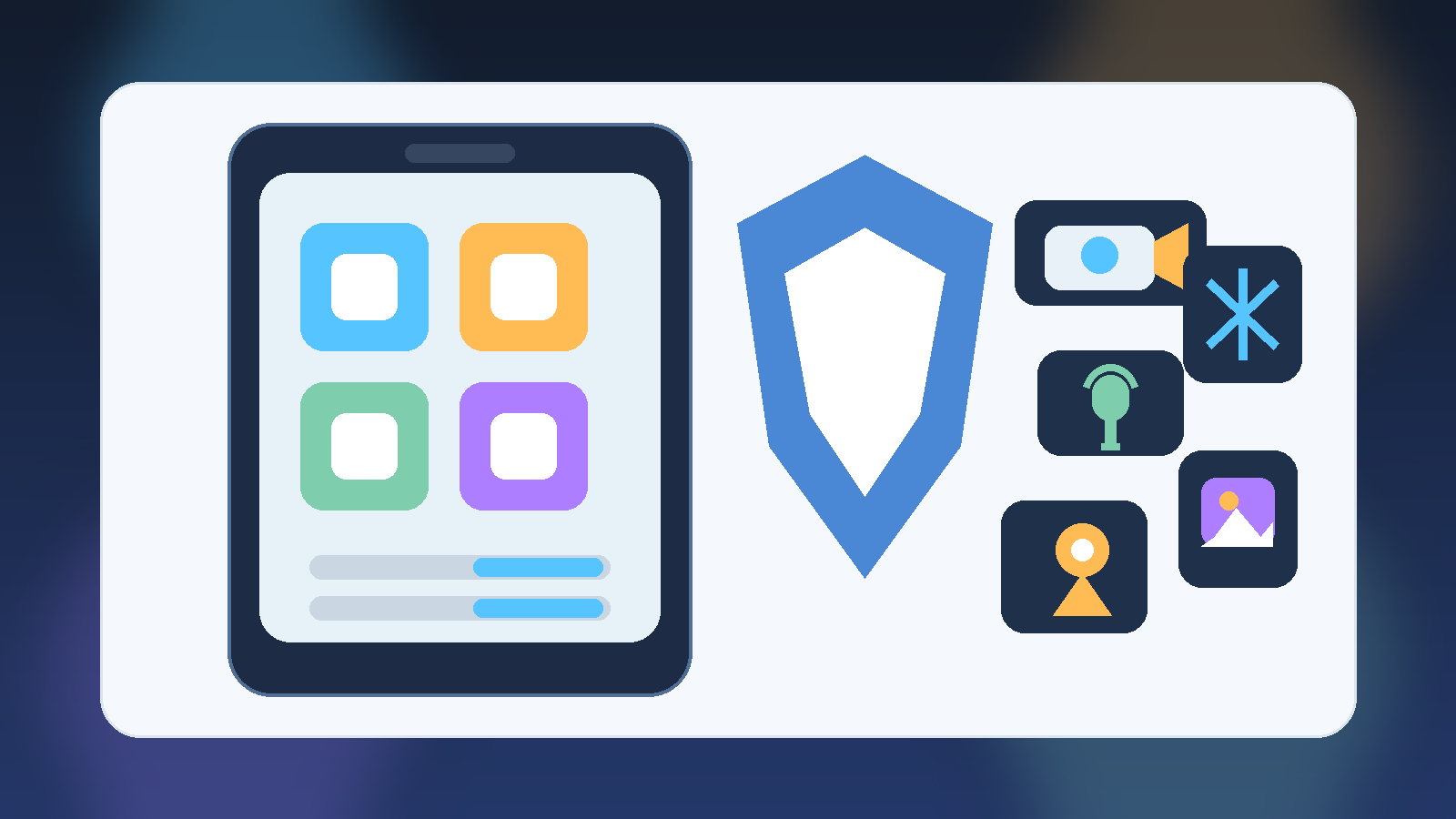
    Setting up a new phone feels like a clean slate, but the privacy and security story does not end when the home screen appears. Once the device is activated, apps begin asking for access to the camera, microphone, location, contacts, photos, Bluetooth, notifications, and more. Families often approve those prompts quickly just to finish setup and move on.

    That is understandable, but it creates a familiar problem: a brand-new phone can inherit an unnecessarily broad permission footprint within its first hour of use. A short review after setup is one of the simplest ways to make the phone calmer, safer, and easier to trust over time.

    Why Setup Prompts Lead to Over-Approval

    Permission prompts usually appear at the most inconvenient moment. Someone is trying to sign in, restore backups, install favorite apps, connect headphones, or send the first message from the new device. In that context, tapping Allow feels like the fastest route back to normal life.

    The trouble is that many apps ask for more access than they need immediately. Some requests are legitimate, some are optional, and some are best granted only while the app is in use. When families approve everything at once, they lose the chance to separate necessary access from habitual access.

    Permissions Shape Both Privacy and Risk

    App permissions are not only a privacy issue. They also affect how much damage a bad app, a compromised account, or a sloppy third-party integration can do. An app with constant location access knows more than one that only checks location while open. An app with full photo access sees more than one limited to selected images. A messaging app that truly needs the microphone is different from a random utility app that wants the same thing.

    Reviewing permissions helps families reduce unnecessary exposure without turning the phone into a locked-down science project. The goal is not to distrust every app equally. The goal is to match the level of access to the job the app is actually doing.

    Start With the Sensitive Categories

    After setup, it is smart to review the permissions that reveal the most about a person or household. Location, microphone, camera, contacts, photos, and Bluetooth usually deserve the first look. These categories affect physical privacy, family relationships, and in some cases security around nearby devices.

    For many households, the best default is moderation. If an app only needs access occasionally, choose the most limited version available. That might mean While Using the App, Ask Next Time, or access to selected photos instead of the entire library. Modern phones finally make this easier than they used to, and families should take advantage of that progress.

    Children and Shared Family Devices Need Extra Attention

    This review matters even more on phones used by children or on devices that move around the household. Kids often accept prompts quickly, and shared devices can blur the line between one person’s data and everyone else’s. A game may not need contact access. A flashlight app definitely does not need the microphone. A shopping app does not always need precise location.

    Families do not need to turn this into a lecture. A two-minute habit is enough: install the app, use it once, then confirm that the permission level still makes sense. Over time, that teaches better judgment than either blind approval or blanket fear.

    Notifications Deserve a Review Too

    People often forget that notification access is part of the quality-of-life picture. A new phone can become noisy fast when every app wins the right to interrupt. While notifications are not always framed as a classic security permission, they influence attention, distraction, and how easily scammy or low-value apps can keep pulling users back in.

    A post-setup review is a good time to ask which apps deserve immediate alerts and which ones can wait silently. Families who reduce unnecessary notifications usually end up with a phone that feels better, not just safer.

    A Practical Five-Minute Checklist

    For most families, a useful review looks like this:

    • Open the phone’s privacy or permissions dashboard.
    • Check location, camera, microphone, contacts, photos, and Bluetooth first.
    • Downgrade any app that does not need constant or full access.
    • Remove permissions from apps that have no obvious reason to hold them.
    • Trim notification access so only important apps interrupt by default.

    That process is short, realistic, and much more effective than promising to “look at it later” and never circling back.

    Final Takeaway

    Buying a new phone is not just about speed, cameras, or screen quality. It is also the moment when a device’s trust boundaries get set. Families who spend a few minutes reviewing app permissions after setup usually end up with fewer privacy surprises, fewer pointless interruptions, and a better sense of control over the device they carry every day.

    That is a strong return on five minutes of attention. In family tech, boring maintenance often beats dramatic fixes.
  • Why Smart TVs Belong on a Guest Network

    Why Smart TVs Belong on a Guest Network

    Smart TVs are convenient, but they are not just screens anymore. They are streaming devices, app platforms, voice assistants, shopping endpoints, and sometimes a loose collection of third-party integrations bundled into one living room box. That combination makes them useful, but it also makes them a poor candidate for sitting on the same unrestricted home network as laptops, phones, and work devices.

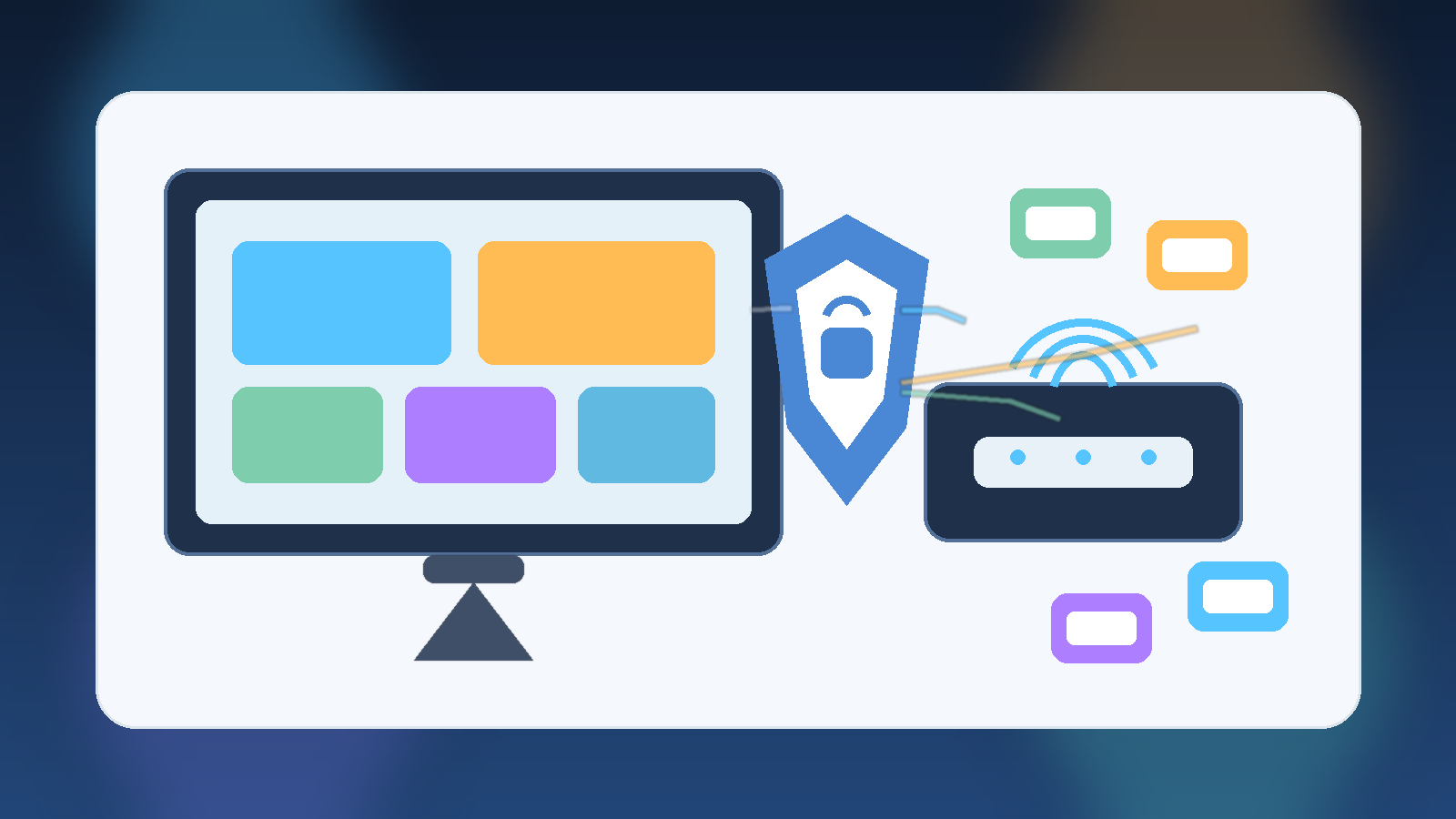
    For most households, the practical answer is simple: put smart TVs and similar entertainment devices on a guest network or a separate IoT network. You do not need enterprise-grade infrastructure to get real value from that decision. A small layer of separation reduces risk, limits avoidable mess, and still keeps the household easy to live with.

    A Smart TV Is More Connected Than It Looks

    People often think of a TV as passive hardware, but modern smart TVs behave more like general-purpose internet devices with a giant display attached. They run apps, phone home for telemetry, receive software updates, and sometimes include microphones, cameras, ad-tech integrations, or account linkages across multiple services.

    That does not mean every smart TV is dangerous by default. It means the device has a larger trust footprint than families usually assume. If something on it is misconfigured, outdated, or overly chatty, it should not have broad visibility into the same network segment where more sensitive devices live.

    Network Separation Limits the Blast Radius

    Good home security is often less about finding the perfect device and more about limiting what a device can reach when something goes wrong. A guest network helps because it creates a boundary. Even if a streaming box, smart TV app, or connected speaker behaves badly, the device is less likely to interact freely with family laptops, file shares, printers, or work machines.

    This matters because the most common household security failures are not cinematic hacks. They are ordinary problems: old firmware, default settings that expose too much, abandoned apps, weak account hygiene, or a gadget that keeps talking to services nobody remembers enabling. Separation turns those problems into smaller problems.

    It Also Helps With Privacy and Household Cleanup

    A separate network is not only about defense. It also makes the home easier to manage. When entertainment devices are grouped together, troubleshooting gets clearer. You can see which devices belong to that category, reboot or rotate credentials with less confusion, and avoid mixing a child’s game console traffic with a parent’s work laptop or backup system.

    There is a privacy angle too. Many smart TVs collect viewing, interaction, or diagnostic data. Families may not be able to eliminate that entirely, but they can avoid giving those devices unnecessary visibility into the rest of the home environment. A television does not need easy proximity to everything else you trust.

    You Do Not Need a Fancy Setup to Benefit

    The phrase network segmentation can sound intimidating, but the household version is usually straightforward. Many modern routers already support a guest Wi-Fi option. In a lot of homes, that is enough. Put smart TVs, streaming sticks, and similar media devices there, keep the primary network for phones, laptops, and tablets, and use a strong admin password on the router itself.

    If the home setup is more advanced, an IoT-specific VLAN or SSID can be even better. But families should not wait for a perfect redesign. A simple guest network that gets used consistently is more valuable than a sophisticated security plan that never quite gets finished.

    Watch for the One Tradeoff: Casting and Local Discovery

    The main downside is convenience. Some casting features, remote apps, or local device discovery flows work best when everything sits on the same network. That means families may need to test how their favorite services behave after moving the TV to a guest network. In some router setups, guest isolation is strict enough to block those conveniences.

    That tradeoff is real, but it is usually manageable. Some routers allow selective device communication, and some households decide that a small casting inconvenience is worth the cleaner security boundary. The right answer depends on what the family actually uses, not on the fantasy of a perfectly seamless house full of permanently trusted gadgets.

    A Sensible Home Baseline

    For most families, a strong baseline looks like this:

    • Keep smart TVs and entertainment gadgets on a guest or IoT network.
    • Use a strong router admin password and current firmware.
    • Remove apps and services the household no longer uses.
    • Review privacy settings after setup instead of accepting every default.
    • Reserve the main home network for devices that hold more personal or work-related data.

    None of those steps are dramatic, and that is exactly why they work. They are realistic. Home security improves when the safe path fits ordinary life.

    Final Takeaway

    Smart TVs do not need full trust just because they live in the family room. They are internet-connected devices with more complexity and more data-sharing potential than their name suggests. Giving them a separate network is one of the simplest ways to reduce unnecessary exposure without making the home harder to use.

    If a household wants a practical security upgrade that does not require buying new hardware, moving smart TVs to a guest network is a very solid place to start.

  • Why Shared Family Tablets Need Separate Profiles

    Why Shared Family Tablets Need Separate Profiles

    Shared tablets sound convenient because one screen can handle school apps, games, streaming, homework, video calls, and quick web searches. The problem is that convenience often hides a messy mix of permissions, saved logins, accidental purchases, and private data crossing between adults and kids. When one device serves everyone, the safest default is not a single shared identity. It is separate profiles with clear boundaries.

    That setup does not need to be complicated. In fact, separate profiles are one of the simplest ways to make a family device feel less chaotic. They reduce privacy mistakes, make parental controls more realistic, and prevent a small convenience decision from becoming a security problem later.

    A Shared Screen Does Not Need Shared Access

    Families often treat a tablet like a kitchen appliance: if it is sitting on the counter, anyone can use it. That mindset is understandable, but software accounts do not work like toaster buttons. A signed-in email app, a cloud photo library, or a shopping account can expose far more than most people realize. Once a device starts remembering logins, payment methods, and recent activity, it is no longer just a neutral screen.

    Separate profiles restore the idea that each person should only see what they actually need. A parent profile can hold administrative settings, payment methods, and private communication. A child profile can limit app access, hide account settings, and keep browsing or watch history from mixing into adult accounts. The device is still shared, but access is no longer blurry.

    Profiles Prevent Small Mistakes From Turning Into Bigger Problems

    Many family tech headaches are not dramatic hacks. They are ordinary slips: a child opens a work chat, installs the wrong app, deletes photos, buys in-game currency, or taps through a permission prompt without understanding it. Those moments happen because the active session has too much power.

    Profile separation limits the blast radius. If a child profile cannot modify system settings, view adult email, or access a saved payment card, then the mistake stays small. That matters because good security is usually less about perfect behavior and more about containing inevitable human error.

    Parental Controls Work Better When They Match a Real User

    Parents sometimes try to enforce rules on a fully shared device and then wonder why the system feels inconsistent. The answer is simple: most controls are built around the idea of a specific user, not an honor system. Screen time limits, app approvals, content filters, and age-based restrictions work far better when the device knows which person is using it.

    That does not mean every family needs an elaborate device management strategy. It means the controls should attach to the child profile instead of the whole tablet. Otherwise adults end up fighting the same restrictions, or children inherit full access because disabling a setting is easier than managing it properly.

    Privacy Matters Even Inside a Household

    Families trust each other, but trust is not the same thing as universal access. Adults may have private health messages, banking notifications, work documents, or personal photos on the device. Kids may have school accounts, classroom messages, or saved projects that also deserve some separation. A healthy family tech setup respects that different people can share a home without sharing every account and every notification.

    This is especially important on tablets because they move around the house casually. A device used on the couch, at the table, in the car, and during travel creates more opportunities for someone to pick it up mid-session. A dedicated profile makes that handoff much safer than relying on everyone to remember which apps are off limits.

    Use a Strong Adult PIN and a Simpler Daily Routine

    Separate profiles are most effective when the adult or administrator profile has a real lock on it. That means a strong PIN, passcode, or biometric requirement for settings changes, new purchases, and account management. Without that second step, a child can still wander into the administrative side of the device the moment curiosity beats caution.

    At the same time, the daily routine should stay simple. Families are more likely to keep a secure setup if switching profiles is quick and predictable. The goal is not friction for its own sake. The goal is putting friction only around the actions that actually matter, such as spending money, changing restrictions, or opening private accounts.

    A Good Setup Usually Includes These Basics

    Most households do not need an advanced checklist, but a few defaults make a big difference:

    • Create a distinct child or guest profile instead of sharing the adult account.
    • Keep purchases, account changes, and system settings behind the adult PIN.
    • Turn on age-appropriate app restrictions and content filters for the child profile.
    • Use separate browsers or profile-specific browsing history where possible.
    • Review installed apps occasionally so the profile does not quietly drift into full-access mode.

    Those steps are not flashy, but they address the common failure modes families actually run into. More importantly, they are sustainable. A security habit that survives ordinary life is worth more than a perfect setup nobody maintains.

    Final Takeaway

    Shared family tablets work best when the hardware is communal but the access is personal. Separate profiles create clearer boundaries, better parental controls, and fewer accidental privacy or spending mistakes. They also make the device easier to manage because each user gets the experience that fits them instead of one overloaded account trying to serve everyone.

    If a household uses one tablet for many jobs, separate profiles are not overkill. They are the practical baseline that keeps a convenient device from becoming a sloppy one.

  • QR Code Scams Are Getting Better: A Family Guide to Safer Scanning

    QR Code Scams Are Getting Better: A Family Guide to Safer Scanning

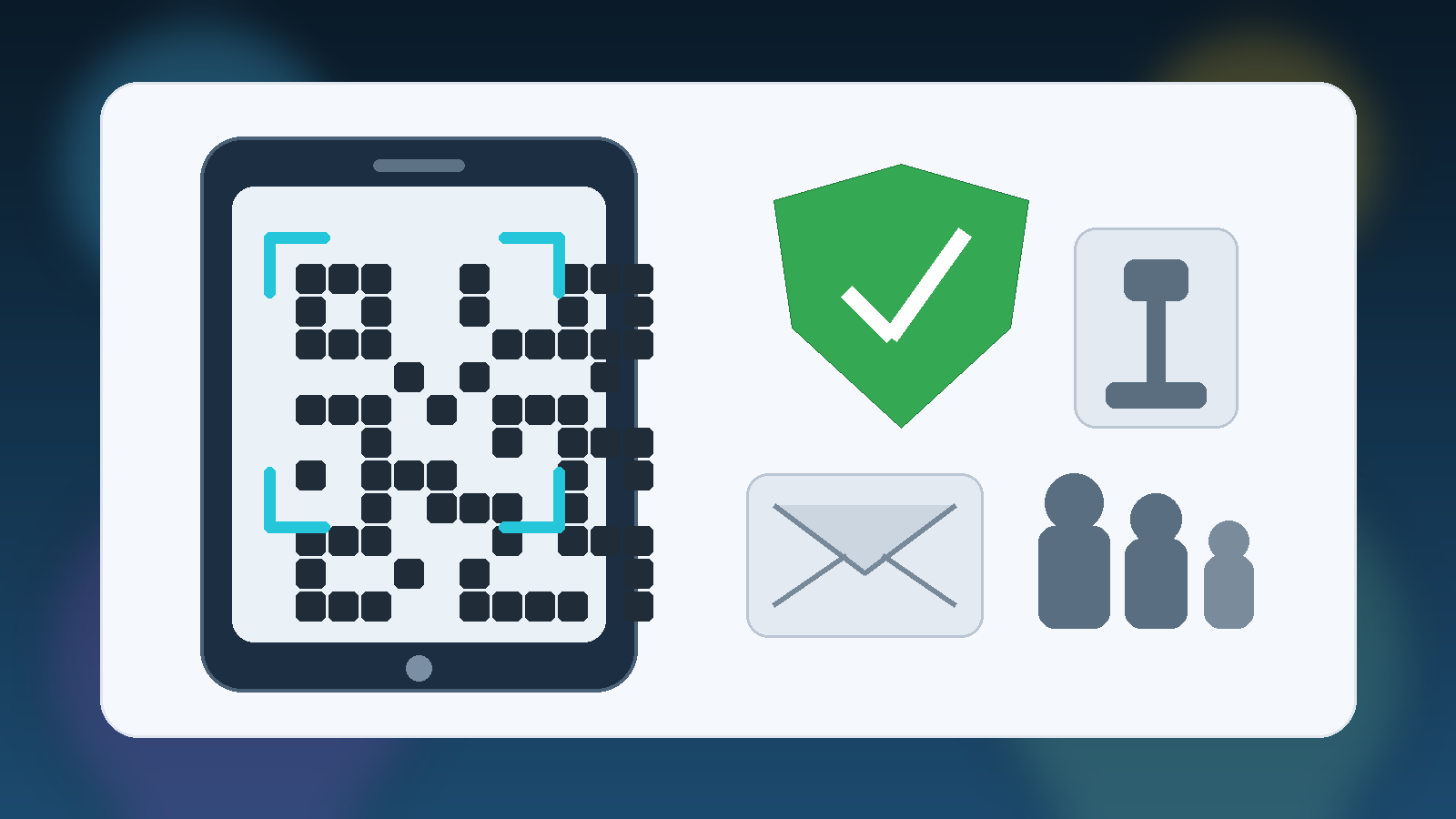
    QR codes have become part of everyday life. Families see them on restaurant tables, parking meters, school flyers, utility notices, and random signs taped to storefront windows. That convenience is exactly why scammers like them. A QR code hides the destination until after the camera opens it, which means people often trust the square before they know where it leads.

    The good news is that safer scanning does not require technical expertise. Most of the protection comes from a handful of habits that slow the moment down just enough to avoid the obvious traps. If a family can learn not to click every suspicious email link, it can learn not to scan every convenient-looking QR code either.

    Why QR Codes Are Attractive to Scammers

    Phishing used to rely mostly on bad links in texts and emails. QR codes give scammers another delivery method that feels more physical and therefore more trustworthy. A fake sticker on a parking kiosk or a polished code in an email can look harmless because it does not resemble the usual blue underlined link people were taught to avoid.

    That is the trick: the code itself is not dangerous, but the destination may be. Once a phone opens the link, the victim can land on a fake payment page, a login prompt, or a download page designed to steal information. The code is just camouflage.

    Start With Context Before You Scan

    The first question is not ?Does this QR code work?? It is ?Why is this code here at all?? Context matters more than the graphic. A school event sign with a code that matches the school?s branding and appears in a place where families expect it is different from a lonely sticker slapped on top of another sticker at a parking meter.

    Families should get comfortable pausing for two seconds before scanning. If the code appears in an odd location, looks tampered with, or feels inconsistent with the situation, it is better to navigate to the organization?s official website manually. That tiny pause defeats a surprising number of scams.

    Preview the Link Instead of Opening It Blindly

    Many phones now show at least part of the destination URL before fully opening it. That preview is worth using. It gives people a chance to notice when a code claiming to belong to a bank, school, or payment service actually points somewhere unrelated or misspelled.

    This matters because scammers depend on speed. They want the user to act on autopilot, not to read carefully. Teaching kids and adults to inspect the web address before tapping through is one of the simplest upgrades a family can make, and it works whether the code came from a poster, an email, or a text message.

    Be Extra Careful With Payments and Logins

    QR codes become much riskier when money or credentials are involved. A code that opens a restaurant menu is one thing. A code that asks for a parking payment, a package redelivery fee, or a sign-in to ?confirm your account? deserves much more skepticism.

    A good family rule is simple: if scanning a code leads to a payment page or a login screen, stop and switch to a known-good path. Open the official app, type the trusted website manually, or use a bookmarked page. Scammers succeed by inserting themselves between the user and the legitimate service, so removing that shortcut is often enough to stay safe.

    Public Places Deserve More Suspicion Than Trusted Spaces

    Codes in public places are easier to tamper with. A scammer can place a fake sticker over the original code on a parking machine, a bulletin board, or a restaurant table. From a distance it still looks official. Up close, it may redirect to a convincing fake site that only exists to collect card details.

    That does not mean families should treat every public QR code as malicious. It means they should use more caution in places where anyone could have modified the sign. If there is any doubt, ask an employee, compare the code to the business?s official site, or skip the scan entirely.

    Kids Need a Rule, Not Just a Warning

    Telling kids ?be careful online? is too vague to help in the moment. A better rule is specific: do not scan codes that ask for money, passwords, downloads, or private information without checking with a parent first. That rule is easy to remember and covers most of the harmful cases.

    It also helps to explain why the rule exists. Kids are more likely to follow a safety habit when they understand the scam, not just the command. QR codes feel modern and harmless, so they need the same kind of suspicion families already apply to weird texts, pop-ups, and rushed requests.

    Use a Short Family Checklist

    If a household wants one repeatable system, this is enough:

    • Ask whether the code makes sense in that location.
    • Preview the destination before opening it.
    • Avoid entering passwords or payment details from a scanned link.
    • Use the official app or website instead when something feels off.
    • Teach kids to ask first when a code involves money, login details, or downloads.

    That checklist is short on purpose. Security habits only work if ordinary people will actually use them. A five-step routine that takes a few seconds is much more realistic than expecting families to become amateur forensic analysts.

    Final Takeaway

    QR codes are not inherently unsafe, but they deserve the same level of caution people finally learned to use with links in email and text messages. The square pattern may look neutral, yet the destination can still be manipulative, fake, or costly.

    The healthiest family habit is to treat scanning as the start of a decision, not the end of one. A brief pause, a URL preview, and a willingness to use the official site instead can block most QR-code scams before they ever get momentum.

  • Passkeys for Families: A Practical Upgrade from Password Reuse

    Passkeys for Families: A Practical Upgrade from Password Reuse

    Passkeys sound like one more security buzzword until you watch a real family deal with password reuse, forgotten logins, and a shared tablet that keeps everybody signed in forever. For households that want better security without turning daily life into an IT job, passkeys are one of the few upgrades that are both safer and less annoying.

    They are not magic. You still need decent device habits, screen locks, and some basic judgment. But compared with the old pattern of weak passwords, saved browser logins, and repeated password reset emails, passkeys are a practical step forward for normal people.

    What passkeys actually change

    A passkey replaces the usual username-and-password dance with a sign-in method tied to your device. In plain English, that often means logging in with Face ID, a fingerprint, or your device PIN instead of remembering another secret phrase. The important security win is that there is no reusable password sitting around waiting to be guessed, leaked, or typed into a fake site.

    That matters for families because most household security failures are not dramatic hacks. They are ordinary habits: the same password used in five places, a kid reusing a parent’s pattern, or someone clicking a convincing login page from an email and typing everything in. Passkeys cut down a lot of that risk by design.

    Why families benefit more than power users think

    Security advice is often written for enthusiasts who enjoy tweaking settings. Families usually need the opposite. They need systems that keep working when people are tired, distracted, or in a hurry. Passkeys fit that reality better than complex password rules ever did.

    If a parent can unlock a banking app with the same face scan they already use on their phone, that is easier than remembering whether the password needed a symbol, a capital letter, and a number. If a teenager can sign in without inventing yet another variation of the same old password, that removes one of the most common weak points in the house.

    The right places to start first

    Do not try to migrate everything in one weekend. Start with accounts that matter most and that already support passkeys well. In most households, the first wave should be the services that can unlock everything else if they get compromised.

    • Email accounts because password resets for other services usually flow through them.
    • Banking and payment apps where the cost of a bad login is obvious and immediate.
    • Password managers if your chosen tool supports passkeys for account access.
    • Primary cloud accounts such as Apple, Google, or Microsoft, since they anchor devices, backups, and family sharing.

    That sequence gives the biggest payoff early. Once the core accounts are upgraded, you can move on to shopping sites, streaming accounts, and the rest of the digital clutter at a calmer pace.

    The shared-device trap nobody mentions enough

    Passkeys do not excuse sloppy device sharing. A family iPad left unlocked on the kitchen counter is still a problem, even if the account behind it uses modern authentication. The cleaner rule is simple: if a device is shared, it needs separate profiles when possible, a strong device lock, and a habit of logging out of sensitive accounts when the session is done.

    This is especially important for schoolwork, shopping, and email. A passkey makes it harder for outsiders to steal an account remotely, but it does not stop a sibling or guest from opening an app on an already-unlocked device. Good account security still depends on basic household boundaries.

    What to do before you switch

    Before enabling passkeys broadly, make sure the family has a recovery plan. Convenience is great right up until someone loses a phone or replaces a laptop unexpectedly. The boring setup work is what keeps a good security change from becoming a weekend disaster.

    • Confirm recovery email addresses and phone numbers are current.
    • Make sure at least one trusted adult understands account recovery for major services.
    • Keep device screen locks enabled and private.
    • Document which platforms hold the family’s most important passkeys.

    That preparation sounds dull, but it is the difference between “this is easier now” and “why did we lock ourselves out of everything?”

    Passkeys are not the whole security plan

    The best case for passkeys is not that they solve every risk. It is that they remove one of the most failure-prone parts of online life: human password behavior. Families still need software updates, healthy skepticism toward phishing, and some agreement about how shared devices are used. But replacing brittle passwords with device-based sign-in is one of the rare modern security upgrades that helps safety and convenience at the same time.

    That makes passkeys worth adopting, especially in households where the old system was already quietly failing.