Tag: cloud storage

  • Why Family Cloud Storage Needs a Shared Ownership Plan Before an Emergency

    Why Family Cloud Storage Needs a Shared Ownership Plan Before an Emergency

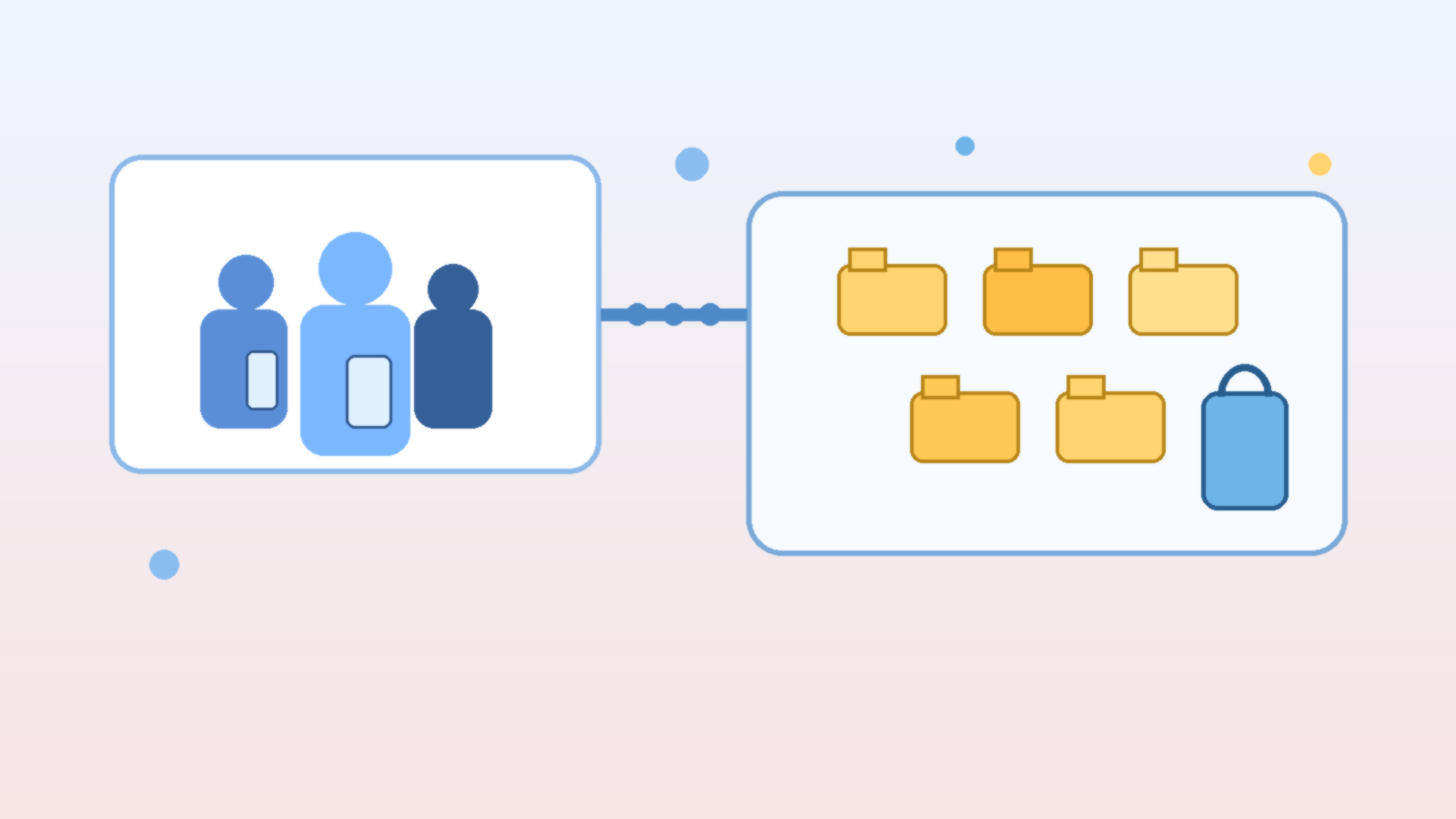
    Shared cloud storage sounds simple on the surface. One person opens the account, everyone saves photos and documents there, and life moves on. The problem shows up later, when a family realizes the entire archive depends on a single login, one billing method, and one person remembering how everything was organized.

    That setup works right up until it does not. A lost device, a locked account, a medical emergency, or even a subscription problem can suddenly turn “our family storage” into “one person’s storage that the rest of us cannot reach.” The fix is not complicated, but it does require treating shared access like a plan instead of a habit.

    Convenience Often Hides a Single Point of Failure

    Many families drift into cloud storage without making any explicit decisions. The first person who buys extra space becomes the default owner, then other people start depending on that account for photos, scans, school files, and shared records. Over time, the storage feels communal even though the control structure is not.

    That mismatch matters because ownership controls recovery. If the main account holder changes passwords, loses access to their email, or dies unexpectedly, everyone else may discover that their “shared” digital life was never truly shared in the first place.

    Separate Shared Access From Personal Identity

    The healthiest setup is one where family collaboration does not rely entirely on one person’s personal inbox or private login. Some platforms allow family sharing, delegated folders, shared albums, or admin roles. When those options exist, they are usually better than handing around one master password.

    This also protects everyday privacy. A spouse, parent, or adult child may need access to important household documents without also inheriting full visibility into someone else’s entire personal account history.

    Decide What Actually Needs Shared Control

    Not every file belongs in the same bucket. Families do better when they split personal material from household material on purpose. Insurance scans, appliance records, school forms, travel documents, and key family photos often deserve durable shared access. Private journals, individual work files, or one person’s tax workspace may not.

    That distinction keeps the system cleaner and makes emergency access less awkward. It is much easier to plan shared ownership when the shared area only contains things that truly need to outlast one person’s memory or availability.

    Make Recovery Boring, Not Heroic

    Good recovery planning should feel boring. At least two trusted adults should know which service holds the family archive, how billing is handled, and what backup protections exist. If recovery codes or account instructions are needed, they should live somewhere deliberate, such as a password manager with emergency access or another clearly documented secure location.

    The goal is to avoid a future scavenger hunt. In a stressful moment, nobody should have to guess which app contains the photos, which email address owns the subscription, or whether auto-renew quietly failed six months ago.

    Review Shared Storage Like a Household Utility

    Families review internet bills, phone plans, and insurance because those services matter. Shared cloud storage deserves the same treatment. A quick check once or twice a year can confirm who owns the account, who still has access, whether backups work, and whether the folder structure still makes sense.

    This kind of maintenance is not glamorous, but it prevents silent drift. The longer a storage system runs without review, the more likely it is to become confusing, brittle, or dependent on one person who never meant to become the family’s permanent digital gatekeeper.

    Final Takeaway

    Family cloud storage should survive normal human reality: forgotten passwords, changed phones, billing hiccups, and emergencies. If the whole setup depends on one account owner doing everything forever, it is not really a family system. It is borrowed convenience.

    A better approach is simple: define what is shared, assign access intentionally, and make sure at least one other trusted person can help recover what matters when life gets messy.

  • How to Back Up Family Photos Without Paying for the Wrong Thing

    How to Back Up Family Photos Without Paying for the Wrong Thing

    If your family takes photos on multiple phones, tablets, and laptops, you probably already have the same problem most households do: the memories feel safe right up until the moment someone drops a phone in water, runs out of storage, or realizes the “backup” only existed on one device. Family photo loss is usually not dramatic. It is quiet, accidental, and completely preventable.

    The good news is that you do not need an enterprise-grade setup to protect family photos. You need a routine that is simple enough to keep using. A strong photo backup plan should do three things well: copy your pictures automatically, keep more than one copy, and make it easy to find the good stuff later.

    Start With the 3-2-1 Rule, but Keep It Practical

    The classic backup rule is still the best place to begin: keep three copies of your photos, on two different types of storage, with one copy off-site. For a family, that usually translates into one copy on the phone you used to take the picture, one copy in a cloud photo service, and one more copy on an external drive at home.

    What matters is not perfection. What matters is that the setup survives ordinary life. If one parent uses an iPhone, another uses Android, and the kids share a tablet, your backup plan has to work across that messy reality. A system that only works when one very organized person remembers a weekly checklist is not really a system.

    Pick One Cloud Home for the Automatic Copy

    The easiest mistake families make is spreading photos across too many services. A few pictures land in iCloud, some go to Google Photos, a handful are stuck inside a messaging app, and older albums live on a laptop no one opens anymore. That is how memories become hard to trust.

    Choose one primary cloud destination and treat it as the automatic catch basin for new photos. For many households, Google Photos or iCloud Photos is the easiest answer because phone uploads happen in the background. The right choice depends less on branding and more on what your family already uses every day. If everyone in the home uses Apple devices, iCloud may create the least friction. If your devices are mixed, Google Photos is often more flexible.

    • Turn on automatic uploads for every phone that matters.
    • Confirm uploads continue on Wi-Fi and, if appropriate, on mobile data.
    • Make sure low-storage warnings are not silently pausing sync.
    • Review whether messaging apps are saving photo attachments into the same library.

    The goal here is simple: the newest family photos should get off the device without anyone having to think about it.

    Add a Home Copy You Control

    Cloud storage is convenient, but it should not be your only backup. Accounts get locked, subscriptions lapse, sync mistakes happen, and accidental deletion can spread fast. That is why a local copy still matters.

    A small external SSD is enough for most families starting out. Once a month, export or sync your full photo library to that drive. If you are more technical, you can automate this with a home computer or NAS. If you are not, a calendar reminder and a clearly labeled external drive is still much better than relying on hope.

    Store that drive somewhere safe and boring. A kitchen counter next to juice boxes is not the ideal archival environment. A desk drawer, office shelf, or closet container works better. If your family has years of photos, consider rotating two drives so you are never one hardware failure away from a bad day.

    Organize Just Enough to Be Useful

    Families often avoid photo organization because it feels like an endless cleanup project. The trick is to do less, not more. You do not need museum-grade curation. You need enough structure that future-you can find the school concert, the beach trip, or the photo of the dog wearing a birthday hat.

    A practical system is to create a short list of yearly or event-based albums and move on. For example, keep one album for each year, plus separate albums for vacations, holidays, and major family events. If your cloud service supports favorites, use that liberally. A smaller “best of” collection is often more valuable than a giant, untouched archive.

    Also, do not ignore old pictures trapped in apps or computers. Once or twice a year, do a sweep for photos sitting in text threads, downloads folders, SD cards, and retired laptops. Those forgotten pockets are where family history quietly disappears.

    Protect the Backup From Human Mistakes

    Most photo loss is not caused by hackers. It is caused by normal people making normal mistakes. Someone deletes a folder while cleaning up storage. Someone signs into the wrong account. Someone assumes “synced” means “archived forever.” A solid routine anticipates this.

    Turn on account security for the services holding your photo library. Use strong passwords or passkeys, enable two-factor authentication, and make sure more than one trusted adult knows how to access the family archive if needed. If your platform has a trash or recently deleted folder, learn how long items stay there before permanent deletion. That one detail can save a lot of regret.

    It is also smart to do a quick recovery test every few months. Open the cloud app, find an older album, and confirm the photos still load. Plug in the external drive and open a few files. Backups only count if you can actually restore from them.

    The Best Backup Plan Is the One Your Family Will Actually Keep

    The best family photo strategy is usually not the most advanced one. It is the one that runs automatically, survives device upgrades, and does not depend on one tech-savvy person being in the mood to manage it. Pick one cloud home, keep a second copy on a drive you control, and check it often enough that surprises stay small.

    If your current setup feels scattered, do not try to fix everything in one weekend. Start with the newest photos, turn on automatic uploads, and create a local copy this month. Small habits protect more memories than ambitious plans that never get finished.